The best language software for learning on a computer
What is the best language software for a computer? Today most language software runs in the browser or installs from it, so the question is less which program than what a computer lets you do better than a phone: type whole words with the right accents, read on a big screen, keep a dictionary open beside your lesson and record yourself with a proper headset. This guide lists seven features to check, how to set up a keyboard for a new alphabet and a simple weekly plan for desk learners. Start by finding your level with a free level test.
Updated · 5 min read
What a computer does better than a phone
- Typing the whole word. On a real keyboard you type the answer instead of tapping it — the kind of recall that makes words stick (more below).
- Accents and new letters. é, ß, ğ, ł, ă — and, with a keyboard layout, Cyrillic, Arabic or Hangul.
- Longer reading. A big screen makes a news article or a grammar guide easier to follow than a phone.
- Two windows. Your lesson on one side, a dictionary or a verb table on the other.
- A good microphone. A headset gives speech recognition, and you, a clearer recording of your own voice.
7 features to check in language software
- Typed or spoken answers, not only clicks. In a study in Science (Karpicke & Roediger, 2008), recalling words again after learning them had a large effect a week later; studying them again had none.
- Reviews spread over days. Practice spaced out beats the same practice in one block — the finding of a review of 317 experiments (Cepeda et al., 2006). The software should decide what is due today.
- An on-screen keyboard for letters you don't have. You shouldn't need to change your system settings to type a German ß on day one. 16Word has an on-screen keyboard with the letters of the language you are learning.
- Fair grading. A slipped finger is not a wrong word. 16Word forgives small typos in longer words, but not a wrong article — die Tisch for der Tisch (German, "the table") is grammar, not typing.
- Sound for every word, and a microphone that helps. Being able to hear a word and say it back is half of knowing it.
- The same account on your phone. You will study at the desk on Monday and on the bus on Tuesday; progress should follow you.
- Levels in CEFR terms. A1 to C2 (Council of Europe) lets you compare the software's levels with exams and job ads.
A new alphabet? Learn the letters first
For a language with its own script, spend the first days on the letters before any vocabulary — then add that language's keyboard layout in your computer's settings so you can type the words you learn. Our alphabet guides go letter by letter:
| Script | Languages and guides |
|---|---|
| Cyrillic | Russian · Ukrainian · Serbian (Cyrillic and Latin) |
| Arabic script | Arabic · Persian · Urdu · Pashto · Sorani Kurdish |
| Other scripts | Hebrew · Georgian · Hindi (Devanagari) · Tigrinya (Ge'ez) · Korean (Hangul) |
| Latin with new letters | Azerbaijani · Romanian · Lithuanian · Somali · Kurmanji Kurdish |
Chinese and Japanese are typed through an input method: you type the sound in Latin letters and pick the character. Learn pinyin or kana well and typing follows — see our Chinese and Japanese grammar basics.
A weekly plan for learning at a desk
| When | Software | Minutes |
|---|---|---|
| Every day | vocabulary reviews and 16 new words | 5–10 |
| Twice a week | a grammar guide with a verb table open beside it — e.g. conjugation tables | 20 |
| Once a week | a live lesson by video | 30–60 |
| Once a month | the level test again | 10 |
The live lesson is the one thing software cannot replace: someone who asks a question you didn't expect and corrects how you say the answer. On Edluxio you can book 1-to-1 lessons by video with teachers and professionals in many fields, starting with a trial lesson with a full refund if it is not right for you.
Where 16Word fits on a computer
16Word runs in any modern browser and can be installed from it as an app, so it opens in its own window like a program; the same account works on the iPhone and Android apps. Each session is 16 words in about five minutes: you type or say each word, an on-screen keyboard has the letters you need, missed words come back sooner and a short Blocks game sits between answers. It is free to start; 16Word Plus adds more, including saving lessons for offline use.
Open 16Word on your computer
No download needed to start: choose your languages and do your first 16 words in the browser.
Free tools to keep open beside your software
- Luxembourgish: vocabulary by topic, phrases, grammar, all free resources
- Dutch: vocabulary by topic, phrases, grammar, all free resources
- English for Turkish and Arabic speakers: İngilizce, English for Arabic speakers
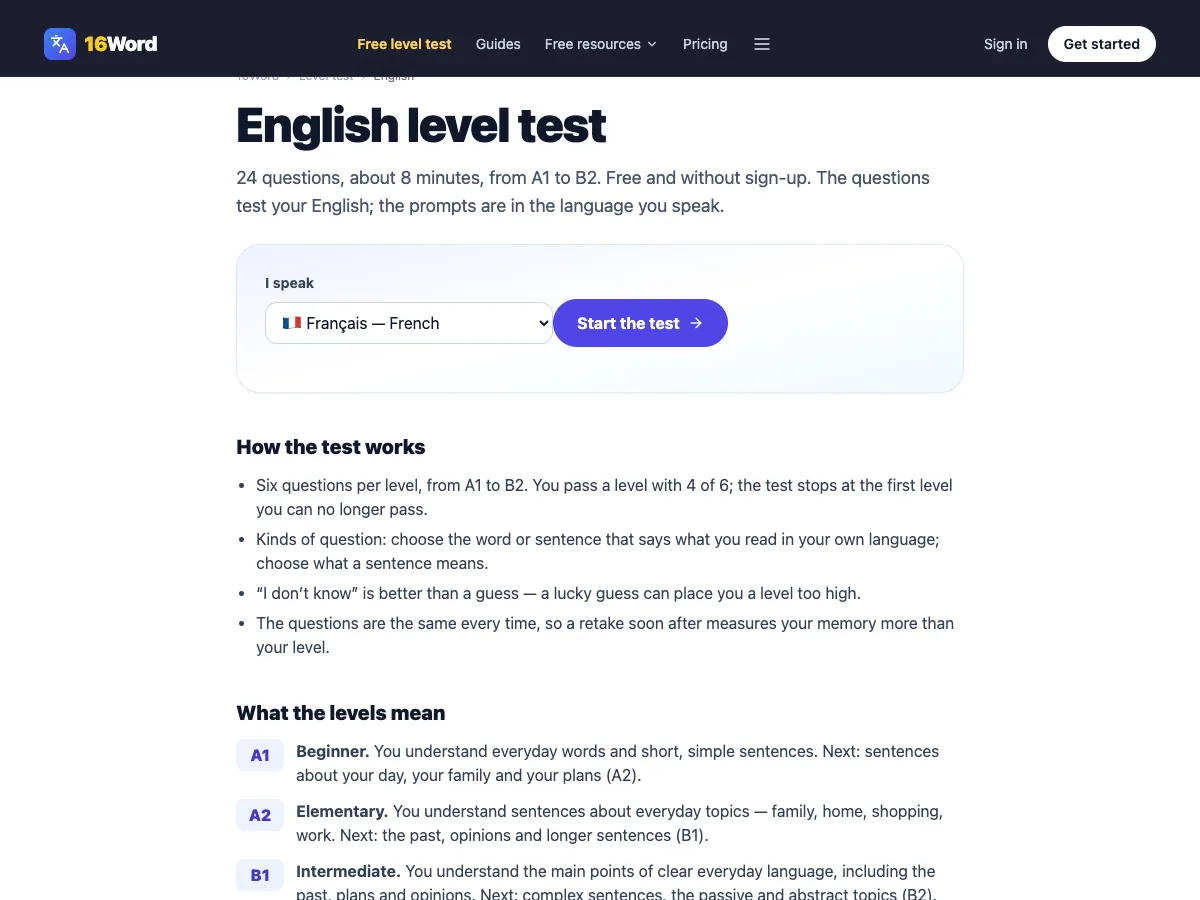
- Level tests: English, French, German, Spanish, Chinese, Japanese, Korean, Arabic, Russian, Turkish
Keep learning
- The best language app: 9 things to check
- The best language learning platform: apps, courses or live teachers?
- The best vocabulary builder
- How to memorize vocabulary: 7 methods that research supports
Questions about language software
What is the best language learning software for a PC or Mac?
Software that makes you type or say answers from memory, schedules reviews over days, shows the letters of your language on screen and syncs with your phone. Most good options now run in the browser, so check them on your own computer before paying.
Do I need to install language software?
Usually not. Browser-based software works on Windows, macOS and Linux, and many can be installed from the browser to open in their own window. 16Word works that way.
Is learning on a computer better than on a phone?
Each is better at something: the computer for typing, reading and longer sessions; the phone for a few minutes anywhere. Use both with one account, so your reviews follow you.
How do I type in Arabic, Russian or Korean on my computer?
Add the language's keyboard layout in your system settings and switch to it while you practise. Learn the alphabet first; our alphabet guides take you letter by letter.
Can language software teach me to speak?
It can train pronunciation and listening, but speaking well also needs conversations with people who answer and correct you. Combine your software with regular live lessons or a language exchange.
Was this guide useful?
Official sources
Keep going
- /level-test
- /
- The best vocabulary builder: 8 features that make words stick
- The best way to learn a language: a plan from zero to B1
- The easiest way to learn a language (without burning out)
- The easiest way to memorize vocabulary: 5 minutes, no willpower
- How to memorize vocabulary: 7 methods that research supports
- The best language app: 9 things to check before you choose
- The best language learning platform: apps, courses or live teachers?
- The best way to learn Chinese: tones, pinyin, then characters
- All guides